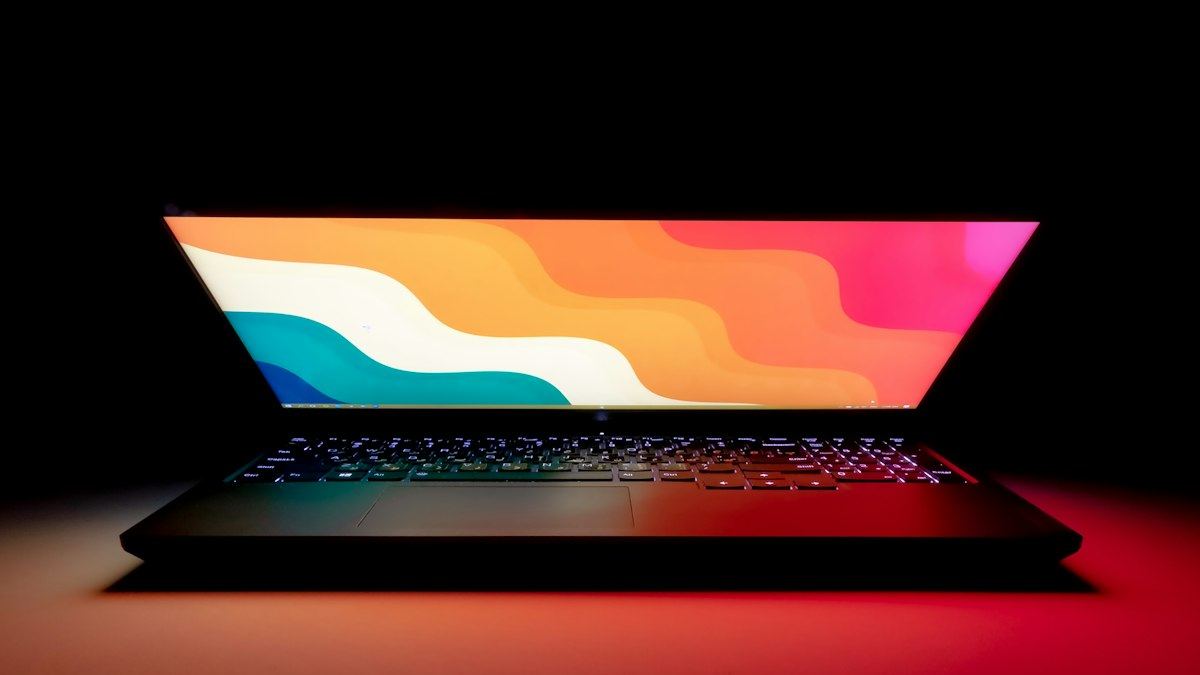




You open your laptop in a dark room, a film starts with a black screen, and there it is: a pale glow along the bottom edge, or bright patches in the corners. Backlight bleed is one of the most common complaints about laptop screens, from MacBooks to gaming laptops from Razer, Acer, HP or ASUS.
In this guide, we explain why laptops are especially prone to it, how to test your screen properly, what is different on a MacBook, what to expect from a gaming laptop, and when it is worth asking for a replacement.
Test your laptop for backlight bleed
Why laptop screens bleed more than monitors
Most laptops use an LCD screen lit from behind by LEDs. If you are not familiar with how this works, our guide What is backlight bleed? explains the basics. On most laptops, the LEDs sit in a strip along one edge of the screen, and a thin light guide spreads their light across the panel. That design keeps the lid thin, but it puts the light source right next to the frame.
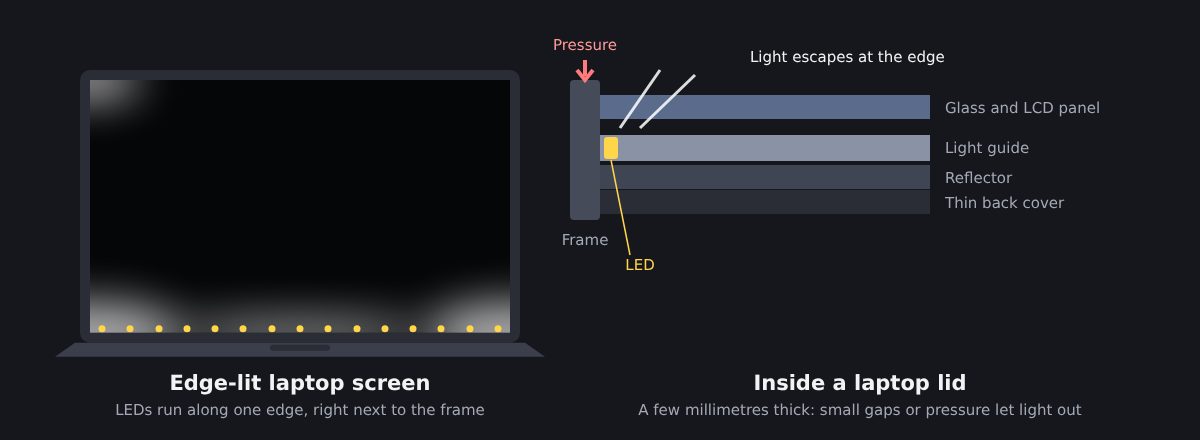
Several factors make laptops more vulnerable than desktop monitors:
- Very thin lids. The panel, light guide and back cover are squeezed into a few millimetres, with little room for error. When the layers are slightly misaligned, the pressure shifts the liquid crystals and lets more light through in some areas, as Intel explains about its own laptops.
- Pressure from the frame. Narrow bezels hold the panel tightly, and any uneven pressure along the edges can let light escape.
- A lid that flexes. Every time you open, close or carry the laptop, the lid bends slightly. Over time, this can make existing bleed more visible.
- Manufacturing tolerances. Two units of the same model can look very different, which is why reviewers often warn that panel quality varies from one laptop to another.
On many laptops, the LED strip runs along the bottom of the screen, just above the hinge. That is why bleed often shows up as a pale band along the bottom edge or as bright spots in the two lower corners. Bleed at the top corners is usually caused by pressure from the frame or from the way the lid was assembled.
How to test your laptop screen
Testing a laptop works much like testing a monitor, with one important difference: you can change the angle of the screen just by tilting the lid. Here is a simple routine:
- Clean the screen with a dry microfiber cloth, so dust and smudges are not mistaken for defects.
- Turn off the lights or close the curtains.
- Open our backlight bleed test and switch it to full screen.
- Set a realistic brightness. Somewhere around 20 to 50% brightness gives a fair picture. At 100%, almost every LCD shows some bleed.
- Sit in your usual position, then slowly tilt the lid back and forth.
- Check with real content, such as a dark film scene, to see whether the leak is noticeable in everyday use.
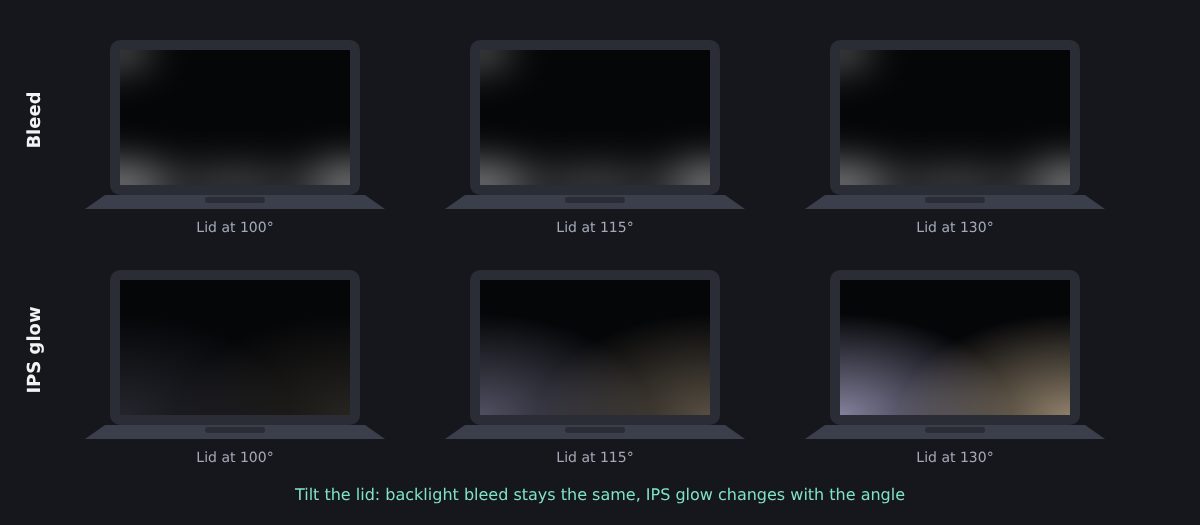
The lid test is the key. If the glow stays the same shape and intensity whatever the angle, it is backlight bleed. If it shifts, grows or fades as you tilt the lid, it is most likely IPS glow, a normal effect of IPS panels. LG makes the same distinction: it describes IPS glow as inherent to the technology, but considers a leak that looks the same from every angle, or that is visible in a well-lit room, as possible backlight bleeding.
Do this test as soon as you get your laptop. When Notebookcheck found noticeable bleed and a stuck pixel on a new ThinkPad X1 Yoga, its advice was to check new devices immediately, because retailers are far more willing to exchange a unit just after purchase. While you are at it, look for dead pixels with DeadPixelTest.org, and our new monitor checklist covers the other tests worth running.
Backlight bleed on a MacBook
MacBooks are not immune, but what you see depends on the model.
MacBook Air and older MacBook Pro models
These use a conventional LED-backlit LCD, so they can show the same kind of edge bleed as any other laptop. It is usually faint and mostly visible on a black screen in a dark room. If you see bright patches along the bottom edge or in the corners during everyday use, test the screen as described above and contact Apple while the laptop is under warranty.
MacBook Pro with a Mini-LED screen
The 14- and 16-inch MacBook Pro models introduced in 2021 use a Mini-LED backlight with local dimming: thousands of tiny LEDs behind the panel, grouped into zones that switch on and off with the image. TechSpot counted 10,000 Mini-LEDs in the 16-inch model. Because the LEDs are spread behind the whole screen, classic edge bleed is much less of an issue.
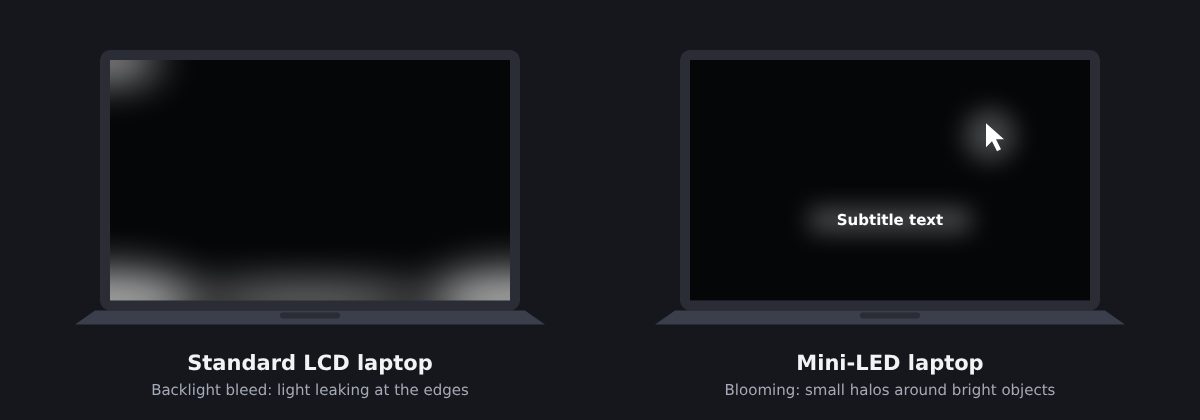
What you may notice instead is blooming: a soft halo around bright objects on a dark background, such as the mouse cursor or white subtitles. It happens because each dimming zone covers many pixels, so a small bright object lights up its whole zone. More zones reduce the effect, but no Mini-LED screen eliminates it completely. On the MacBook Pro, TechSpot found blooming very limited, especially in everyday desktop use. A halo that follows the cursor is blooming, not a defect.
Keyboard marks and camera covers
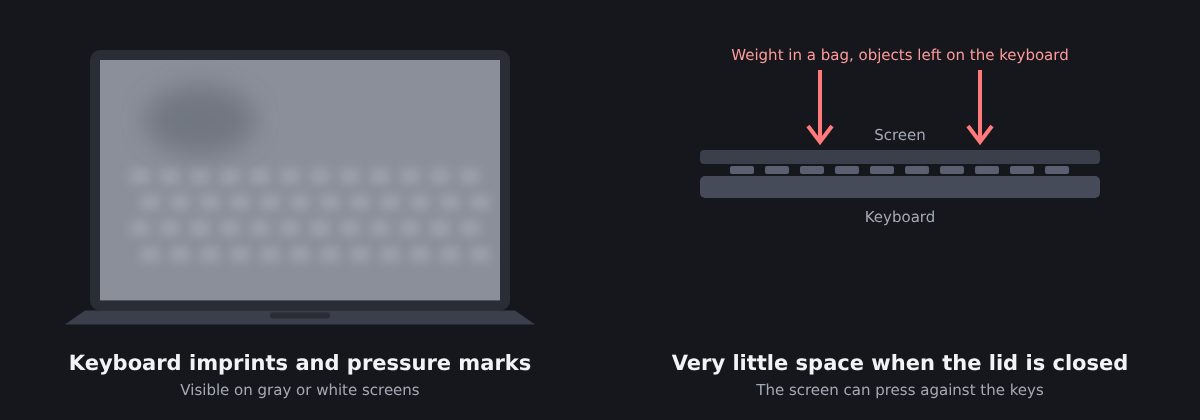
MacBooks have very little space between the screen and the keyboard when the lid is closed. Apple says the clearance is designed to very tight tolerances and warns that closing the lid with a camera cover thicker than about 0.1 mm can damage the display. The same applies to anything left on the keyboard, like a cloth that is too thick, earbuds or a pen.
Backlight bleed on gaming laptops
Gaming laptops, such as the Razer Blade, Acer Nitro and Predator, HP Omen, ASUS ROG or Lenovo Legion, attract a lot of complaints about backlight bleed. There are a few reasons for this:
- Fast IPS panels. Many gaming laptops use high-refresh-rate IPS screens, which are prone to both bleed and IPS glow.
- Dark content. Games, loading screens and films often show large dark areas, exactly where bleed is most visible.
- Large, thin lids. 16- and 17-inch screens in slim chassis offer plenty of room for uneven pressure.
Most manufacturers consider a little bleed normal. Intel, for instance, says about its gaming laptop that backlight bleeding cannot be completely eliminated. In practice, a faint glow visible only on a black screen is unlikely to be accepted as a defect, but bright patches that show up during games or films usually are.
While you test a new gaming laptop, check that its screen actually runs at the advertised refresh rate with FrameRateTest.org: a 165 Hz or 240 Hz panel stuck at 60 Hz is a more common problem than you might think, and much easier to fix than bleed.
What about OLED laptops?
A growing number of laptops use OLED screens, in which each pixel produces its own light. Without a backlight, there is nothing to leak, so OLED screens do not suffer from backlight bleed or IPS glow. Their weak points are different: static elements left on screen for long periods can cause image retention or burn-in, which we cover in our backlight bleed guide.
Backlight bleed or another screen problem?
Not every glow or blotch on a laptop screen is backlight bleed. Before you contact support, make sure you are not looking at one of these:
- IPS glow: a tinted sheen in the corners that changes as you tilt the lid. It is normal on IPS panels.
- Clouding and pressure marks: lighter, blotchy patches in the middle of the screen rather than at the edges. On laptops, they are often caused by pressure on the lid, for example in a crowded bag.
- Keyboard imprints: a faint pattern of rectangles matching the keys. These are often just skin oil and dust transferred from the keys when the lid is closed, and they wipe off with a microfiber cloth. If they don’t, the coating or the panel may have been damaged by pressure.
- Uneven brightness: a screen that is slightly darker at one side or in the corners, visible on a white or gray background. A small difference is common; a strong one is worth reporting.
- Dead or stuck pixels: sharp, tiny dots rather than a diffuse glow. Check for them with DeadPixelTest.org.
Our guide What is backlight bleed? explains each of these issues in more detail.
Is your laptop's backlight bleed normal?
Because almost every LCD laptop leaks a little light, use this rule of thumb:
- Normal: a faint glow that you can only see on a black screen, in a dark room, at high brightness.
- Worth reporting: bright patches that you notice while watching films, gaming or working, that are visible with the lights on, or that look the same from every lid angle.
If your laptop is new, contact the retailer first: returns and exchanges are usually simpler than a warranty repair. Take photos with the exposure locked, so they show what you actually see rather than the exaggerated glow a phone camera produces in the dark. If you have to go through the manufacturer, describe the test conditions precisely.
A full screen replacement does fix backlight bleed, but on a laptop it usually means replacing the whole display assembly, which is expensive outside warranty. Keep in mind that the new panel comes from the same production lines and can show some bleed of its own. If your laptop is still covered, a replacement is worth requesting when the bleed is clearly visible in everyday use; if not, the tips below will often make it acceptable for far less money.
Bleed also tends to stay stable on a laptop that is handled with care. If it gets noticeably worse over a few weeks, check whether the lid has been bent or pressed, for example by carrying the laptop in a tight bag.
How to reduce and prevent backlight bleed on a laptop
Bleed cannot really be repaired, but you can make it much less visible:
- Lower the brightness in dark rooms.
- Add some ambient light and use light wallpapers and themes. Intel recommends exactly these three simple steps.
- Adjust the lid angle to the position where the glow is least visible.
To avoid making it worse, treat the lid gently:
- Open the laptop from the middle of the lid, not from a corner, to avoid twisting the panel.
- Never close the lid on an object, including thick camera covers, and keep the keyboard clear.
- Carry the laptop in a padded sleeve, and avoid putting heavy objects against the lid in a bag.
Finally, avoid the DIY “fixes” you may find online, such as loosening the bezel, twisting the lid or pressing on the edges of the screen. They rarely help, can crack the panel or leave permanent pressure marks, and will usually void your warranty.
A little bleed is part of how LCD laptops work. Test early, use the lid-angle trick to rule out IPS glow, and if the leak is clearly visible in everyday use, ask for a replacement while you still can.