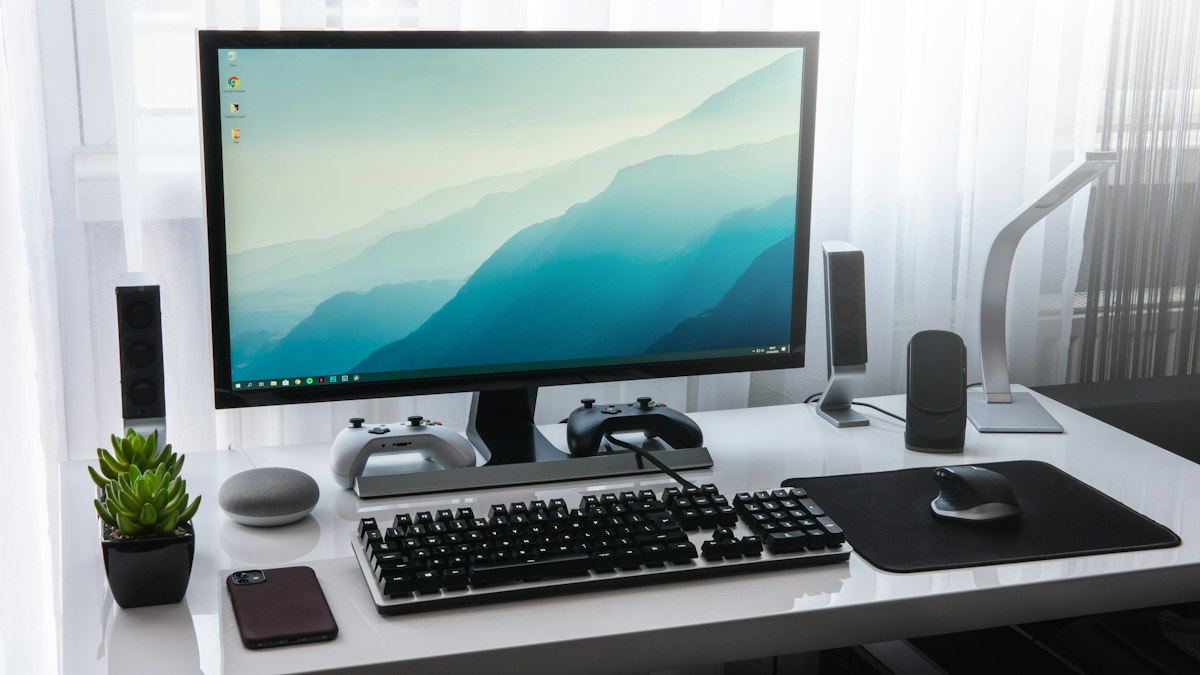




You’ve just unboxed a new monitor, plugged it in, and everything seems fine. But is it really? Dead pixels, backlight bleed, a refresh rate stuck at 60 Hz or ugly trails behind moving objects are all easy to miss in the first few minutes, and much harder to fix once the return window has closed.
This checklist walks you through ten quick tests, most of which you can run in your browser with free tools. Set aside about 30 minutes, ideally on the day your monitor arrives.
Start with the Backlight Bleed Test
The checklist at a glance
- Inspect the screen, stand and ports for physical damage, and check that every cable is in the box.
- Make sure your computer uses the monitor’s native resolution and the right cable.
- Confirm that the monitor runs at its advertised refresh rate with FrameRateTest.org.
- Look for dead and stuck pixels on solid full-screen colors with DeadPixelTest.org.
- Check for backlight bleed and IPS glow on a black screen in a dark room with our backlight bleed test.
- Display gray and white screens to spot tints, blotches or dark corners.
- Watch moving objects for ghosting trails or bright halos, and adjust the overdrive setting.
- Check that near-black shades remain visible and that gradients are smooth.
- Look at the screen from different angles to see how much the image shifts.
- Lower the brightness and listen closely to detect flicker or buzzing.
Each step is explained in detail below.
Why test your monitor right away?
Most panel defects are present from day one, and your options for dealing with them shrink over time. If you bought the monitor online in the European Union, you generally have at least 14 days from delivery to withdraw from the purchase without giving a reason, and you may examine the product as you would in a shop, including checking that it works. Retailers elsewhere often have similar return windows. After that, you depend on the manufacturer’s warranty, which usually means proving that the defect goes beyond what the brand tolerates.
Before you start
- Clean the screen with a dry, lint-free cloth. Dust can look exactly like a stuck pixel.
- Let the monitor warm up for a few minutes, so the backlight and colors settle.
- Update your graphics drivers and use a good-quality cable, ideally the one that came with the monitor.
- Sit at your normal distance. Dell inspects standard monitors from about 35 to 50 cm.
- Keep a dark room available for the backlight and uniformity tests.
The 10-step monitor test checklist
1. Inspect the monitor physically
Before switching anything on, look over the panel and the frame for scratches, cracks or pressure marks, especially near the corners. Check that the stand adjusts smoothly, that every port is intact, and that all the cables and accessories listed on the box are there.
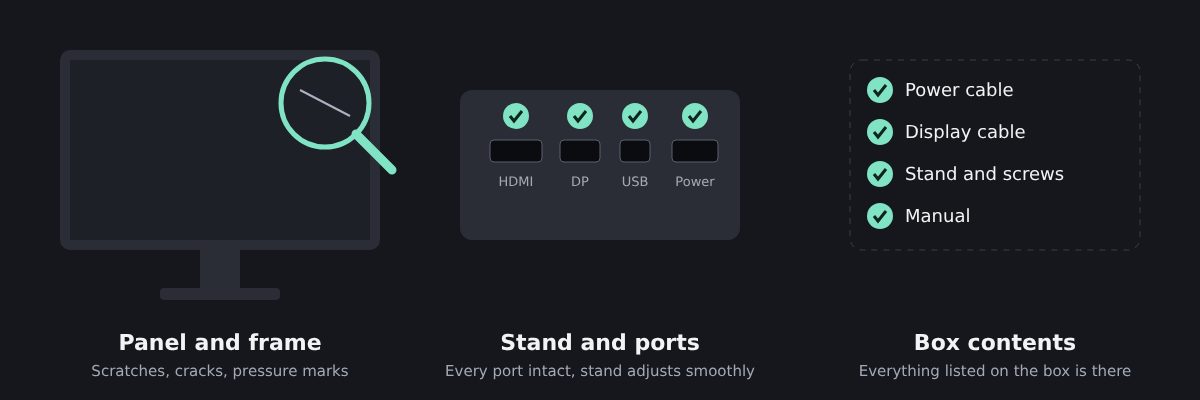
If the box itself is badly damaged, take photos before you go any further: they will help if you need to return the monitor.
2. Check the resolution and connection
Make sure your computer is sending the monitor’s native resolution, the exact number of pixels the panel has (for example 2560 × 1440). Anything else forces the monitor to rescale the image, which makes text look soft.
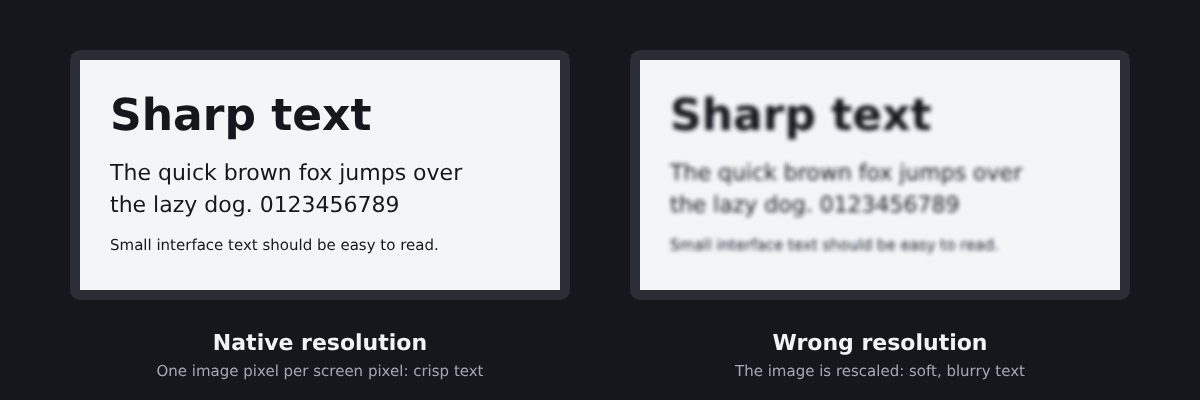
In Windows, you’ll find it under Settings > System > Display, and the native option is usually marked as “Recommended”. You can double-check with the screen resolution test on DeadPixelTest.org.
3. Confirm the refresh rate
This is the most common problem with gaming monitors: you paid for 144 Hz or more, but the screen is still running at 60 Hz. BenQ recommends checking four things:
- The monitor’s menu: some models need the high refresh rate switched on in their on-screen display.
- Windows: in Windows 11, go to Settings > System > Display > Advanced display and pick the highest rate in the refresh rate list.
- The cable: DisplayPort is the safest choice for high refresh rates. Older HDMI versions and low-quality cables can limit the refresh rate.
- Your graphics card: make sure it supports the resolution and refresh rate, and check the NVIDIA or AMD control panel if Windows still shows a lower value.
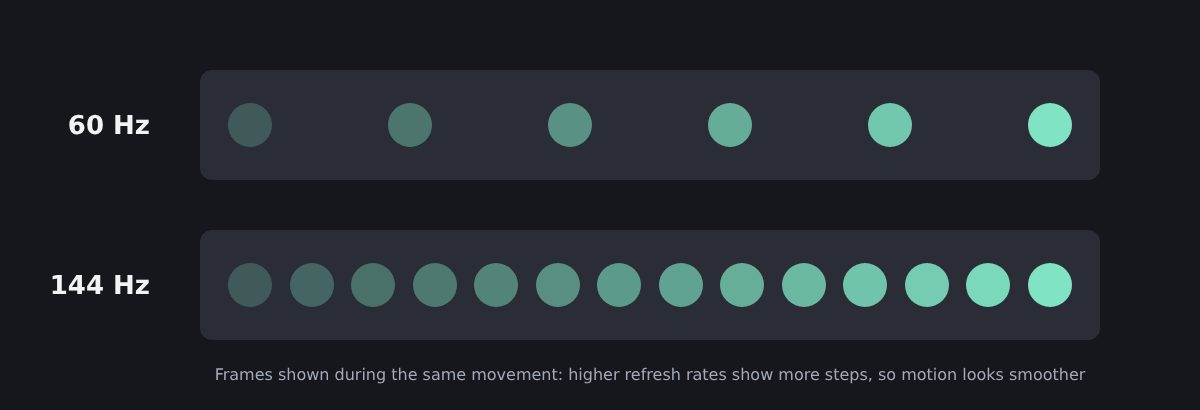
Then confirm the real refresh rate in your browser with FrameRateTest.org, which measures how many frames per second your screen actually displays.
4. Look for dead and stuck pixels
Each pixel is made of red, green and blue subpixels. In Dell’s terminology, a dead pixel stays black because all its subpixels are off, a stuck (bright) pixel stays lit, and a stuck subpixel shows up as a small red, green or blue dot.
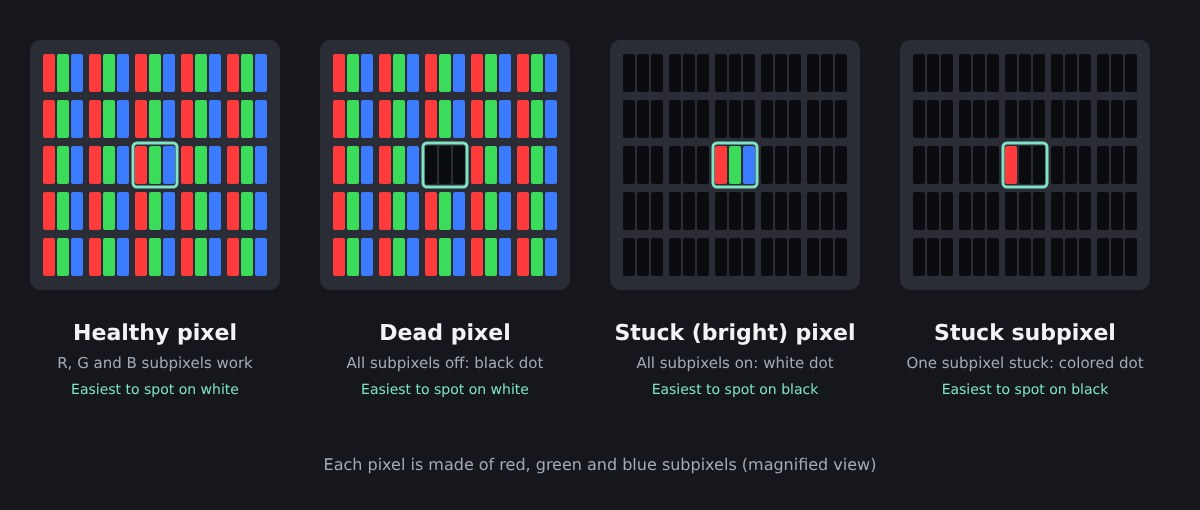
To find them, display solid full-screen colors one after another: black, white, red, green and blue. Dark dots stand out on white, bright dots on black, and wrong-colored dots on the red, green and blue screens. DeadPixelTest.org cycles through these colors for you in full screen.
How many faulty pixels are acceptable depends on the brand. Dell, for example, replaces “Premium Panel” monitors that have even a single bright pixel during the warranty period, but tolerates up to five bright pixels on its standard monitors. Look up your manufacturer’s pixel policy before contacting support. If you find a stuck pixel, a color-flashing tool such as the fixer on DeadPixelTest.org sometimes brings it back. Never press on the screen to “massage” a pixel, though: Dell advises against applying pressure and recommends contacting support instead.
5. Test for backlight bleed and IPS glow
On LCD monitors, light from the backlight can leak around the edges of the screen. Turn off the lights, set brightness to a moderate level, and open our backlight bleed test in full screen. Bright patches along the edges or in the corners are backlight bleed.
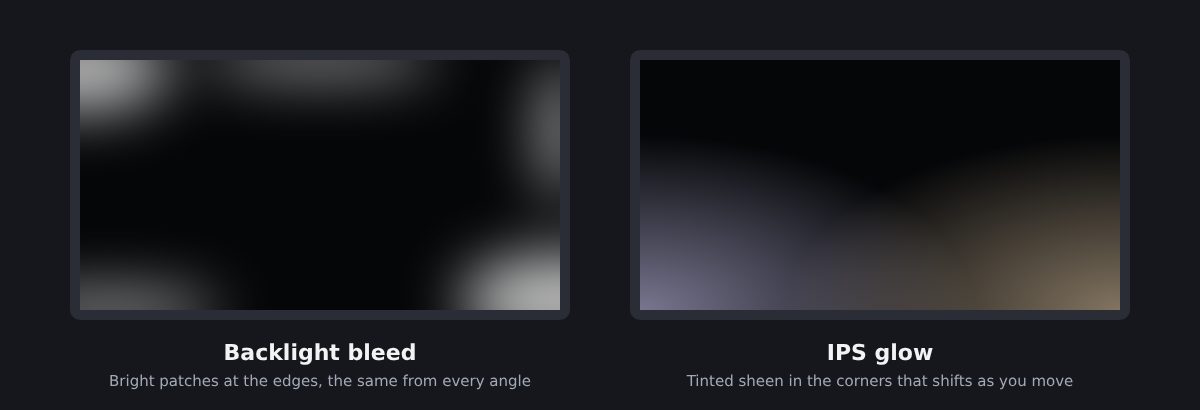
Then move your head: if the glow changes shape or fades, it is IPS glow, which is normal on IPS panels. Our guide What is backlight bleed? explains how much bleed is normal and what to do about it.
6. Check screen uniformity
Uniformity is about how evenly the monitor displays a single color across the whole screen. It matters most with large areas of solid color, such as a web page, a spreadsheet or a sky in a game. Display full-screen gray and white images and look for darker corners, colored tints on one side, or blotchy patches (sometimes called “clouding” or the “dirty screen effect”).
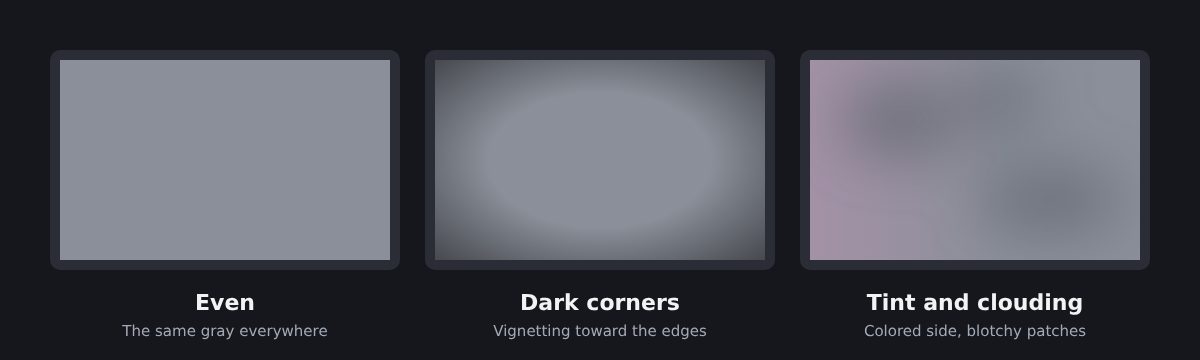
A slight difference between the center and the edges is common. Large, obvious patches that you notice during normal use are worth reporting.
7. Check motion clarity and ghosting
LCD pixels need a little time to change color. When some transitions are slow, moving objects leave a dark smear behind them: this is ghosting. Monitors fight it with overdrive, which pushes pixels to change faster. Too much overdrive creates the opposite problem: bright halos called coronas, or “inverse ghosting”.
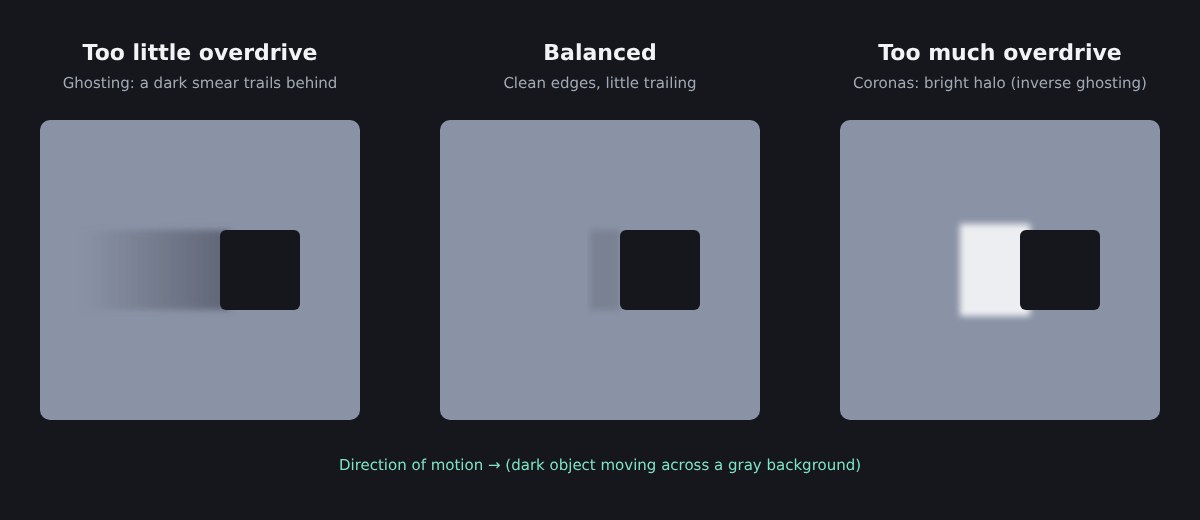
Run the motion test on FrameRateTest.org and watch the edges of the moving objects. Then try each overdrive setting in your monitor’s menu (often called “Response Time”, “Overdrive” or “Trace Free”). A middle setting usually gives the best balance, but the right value varies from one model and refresh rate to another, so test it yourself.
8. Check contrast, gamma and gradients
Test images can reveal shortcomings that ordinary photos hide. Three checks are worth doing:
- Black level: on a pattern of very dark gray squares, you should be able to tell the darkest ones apart from pure black. If not, shadow detail in films and games will be lost.
- White saturation: the same idea with very light squares on white.
- Gradients: a smooth black-to-white or color gradient should not show visible bands or steps.
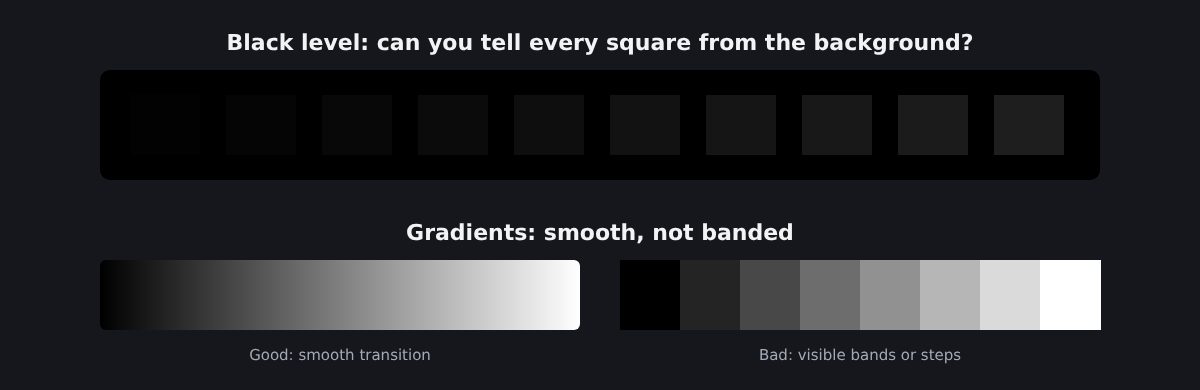
The screen contrast test on DeadPixelTest.org and the Lagom LCD test pages cover these checks. If you fail them, try adjusting brightness, contrast and gamma in the monitor’s menu before blaming the panel.
9. Check viewing angles
Open a white or light gray page and look at the screen from slightly above, below and to the sides. Some color and brightness shift is normal, and the amount depends on the panel type: IPS panels usually hold up best, while VA and especially TN panels shift more.
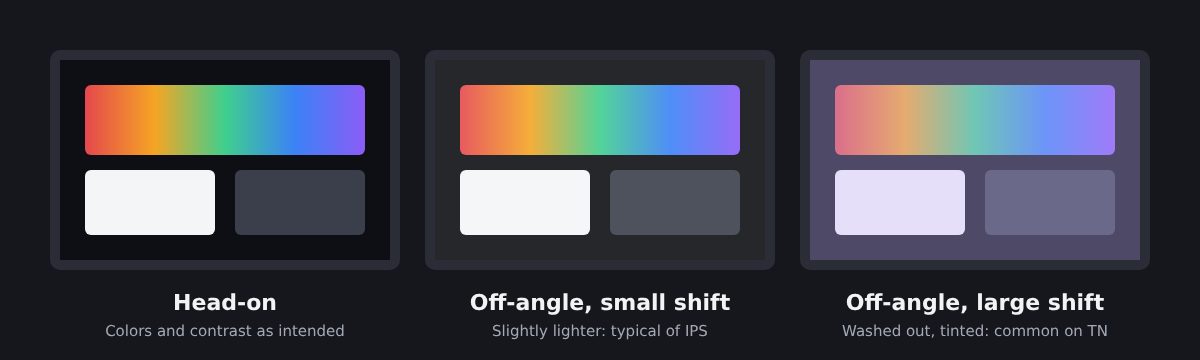
What you want to check is that the image stays even from your normal seating position, which is the angle you will actually use. On large or curved monitors, the edges are seen at a wider angle than the center, so pay attention to them.
10. Watch and listen for flicker and noise
Lower the brightness to its minimum and look for flicker, especially in your peripheral vision. Some monitors dim their backlight by switching it on and off very quickly, which a few people find tiring.
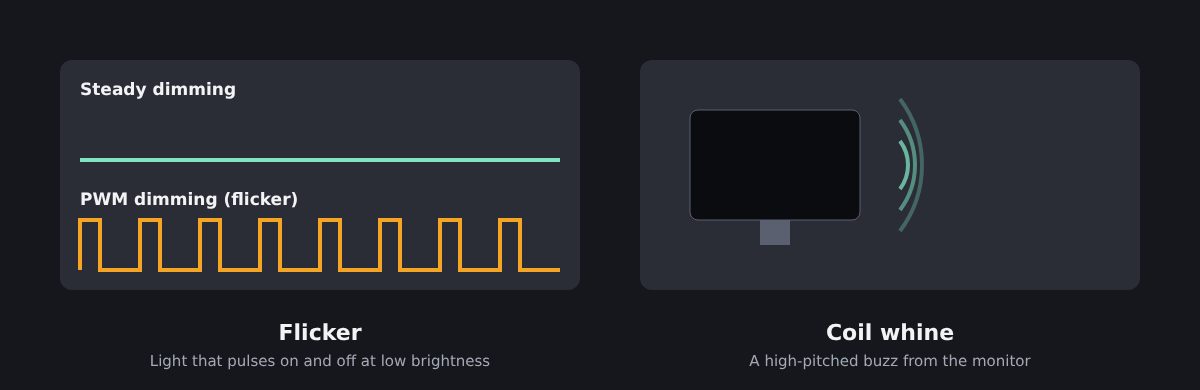
Then listen closely: a high-pitched buzz or whine from the monitor, particularly at certain brightness levels or with specific images, is a fault worth reporting if you can hear it from your normal seat.
Quick reference
| Test | Free tool | Passes if… |
|---|---|---|
| Resolution | DeadPixelTest.org resolution test | Native resolution is in use |
| Refresh rate | FrameRateTest.org | Measured Hz matches the advertised Hz |
| Dead and stuck pixels | DeadPixelTest.org | No dots on black, white, red, green or blue, or within the brand’s policy |
| Backlight bleed | BacklightBleedTest.org | No bright patches visible in normal use |
| Uniformity | Full-screen gray and white | No large tints, blotches or dark corners |
| Motion and ghosting | FrameRateTest.org motion test | No obvious trails or halos at your chosen overdrive setting |
| Contrast and gradients | DeadPixelTest.org contrast test | Near-black steps visible, no banding |
| Viewing angles | White or gray page | Image even from your seat |
| Flicker and noise | Your eyes and ears | No visible flicker or audible buzzing |
What to do if your monitor fails a test
First, rule out settings and cables: many “defects” disappear after changing the refresh rate, the overdrive level or the cable. If the problem remains, document it with photos taken in manual or locked exposure so they match what you see, and note the test you used. Then:
- Within the return window: contact the retailer. In the EU, you must clearly tell the seller you are withdrawing: simply sending the monitor back is not enough.
- After the return window: check the manufacturer’s pixel policy and warranty terms, then contact support with your photos and the monitor’s serial number.
Testing takes half an hour, but it can save you from living with a flawed screen for years. Run through the checklist as soon as your monitor arrives, and keep the box until you’re satisfied.